Account and settings
This page describes what you set up about your account and the way you work: the settings with their four tabs, your profile, the indexing of a file, the queue of background jobs and the subscription of your team.
Open the settings
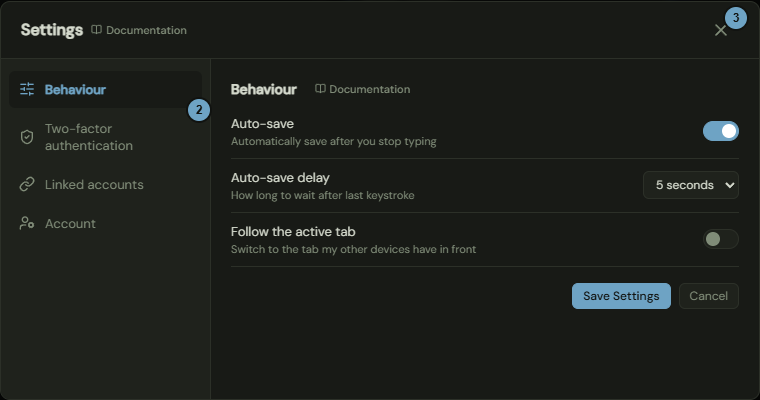
The settings are a window with tabs. At the left stands the list of areas, at the right the chosen area. The Behaviour area is always there. Two-factor authentication and Linked accounts appear only with a team account, Account also only while you are not signed in with a recovery code.
How it works
- Click the user icon at the top, then Settings in the menu.
- Click an area at the left, for example Two-factor authentication.
- Close the window with the cross. Escape and a click outside the window close it too, and on the Behaviour area so does Cancel.
Effects
| Input or choice | Affects | Result |
|---|---|---|
| Entry in the list at the left | Window | Shows the area. The other areas are hidden. |
| Cross, Cancel, Escape, click outside the window | Window | Closes the window. Unsaved changes in the Behaviour area are lost. |
Set up behaviour
The Behaviour tab stands in the picture of the window above, see Open the settings. It decides when MeshFolio saves your changes and whether this device follows the tab of your other devices.
How it works
- Switch Auto-save on or off.
- Under Auto-save delay, choose 1, 2 or 5 seconds.
- Switch Follow the active tab on if this device should switch to the tab your other devices have in front.
- Click Save Settings. The window closes.
Effects
| Input or choice | Affects | Result |
|---|---|---|
| Auto-save | Files | A file with unsaved changes is saved as soon as you have stopped typing for the set time. A storage can also switch on auto-save for its files. |
| Auto-save delay | Auto-save | Wait time after the last keystroke: 1, 2 or 5 seconds. The choice stays selectable even when auto-save is off. |
| Follow the active tab | Tabs | This device switches to the tab another device of yours brings to the front. The tabs themselves sync even without this option. |
| Save Settings | Your person | Saves the settings for all your devices. |
| Cancel | Window | Discards your changes. |
Manage the second factor
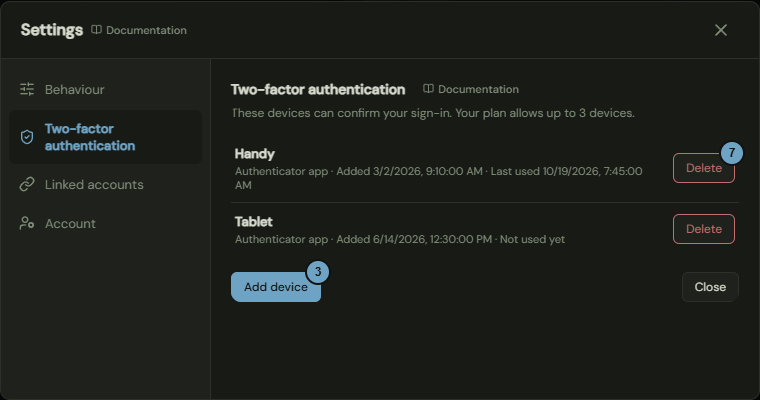
The Two-factor authentication tab lists the devices that can confirm your sign-in and adds new ones. It appears only with a team account.
How it works
- Open the settings and click Two-factor authentication.
- Read the list: name, type, date added and last use per device.
- Click Add device.
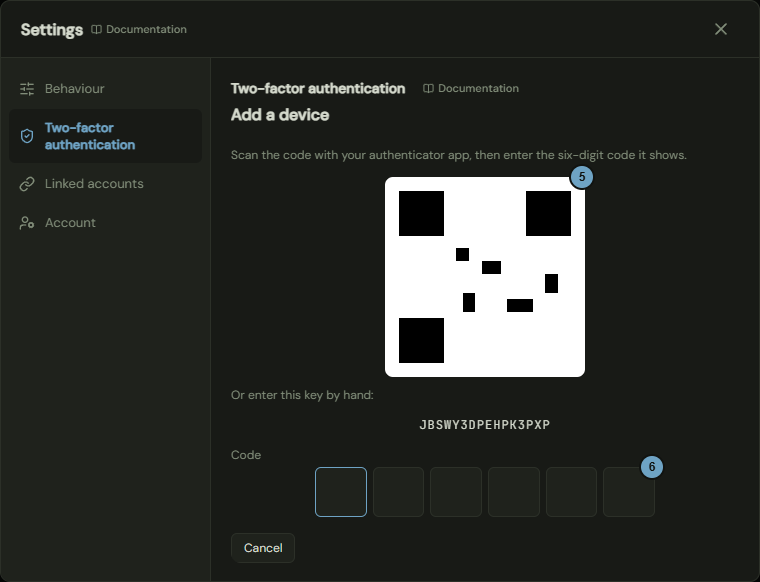
- Under Name of the device, enter a name and click Show QR code.
- Scan the code with your authenticator app. Or enter the key below it by hand.
- Enter the six-digit code of the app. With the sixth digit the device is added.
- To remove a device, click Delete and confirm with Delete device.
Effects
| Input or choice | Affects | Result |
|---|---|---|
| Show QR code | Devices | Creates a device that does not count yet. It counts only after the right code. |
| Six-digit code | Device | Activates the device and refreshes the list. |
| Cancel while scanning | Device | Discards the device that is not active yet. |
| Delete device | Device | Codes from this device stop working. |
| Add device | List | Disabled once the number of devices your plan allows is reached. The note names the number. |
| Delete on the only device | Device | Disabled, unless your account was created through GitHub. Add another device first. |
| Add security key or passkey | Device | Creates a key through the browser. The button appears only when the server and your browser can do it. |
Manage linked accounts
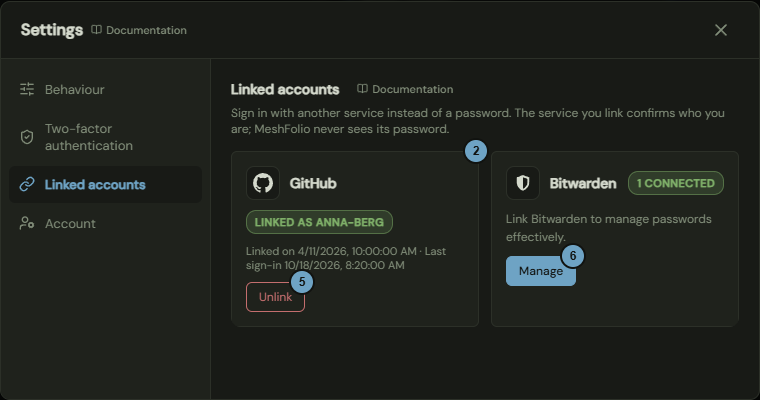
The Linked accounts tab connects your account with another service so that you sign in there instead of with a password. It appears only with a team account.
How it works
- Open the settings and click Linked accounts.
- Read on the card of the service whether the account is linked.
- Click Link GitHub, sign in at the service and return to MeshFolio.
- Afterwards read on the card the date of the link and of the last sign-in.
- To remove the link, click Unlink and confirm.
- Members with read access see the Bitwarden card. Add or Manage opens the choice for vaults there.
Effects
| Input or choice | Affects | Result |
|---|---|---|
| Link GitHub | Browser and account | Leaves MeshFolio for the sign-in at the service. Afterwards MeshFolio shows “Account linked.”. |
| Unlink | Link | Removes the link. You can no longer sign in with it. |
| Unlink on the only way to sign in | Link | Disabled. Link another account first, or use a password with an authenticator. |
Profile and delete the account
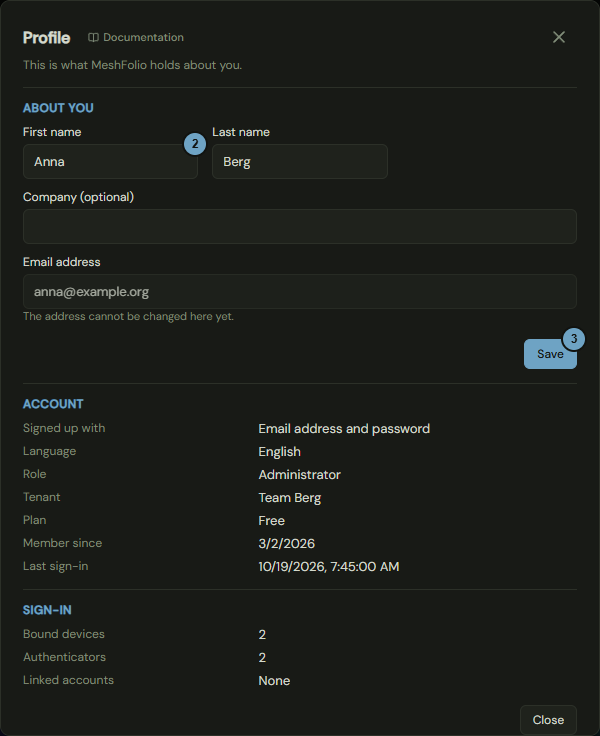
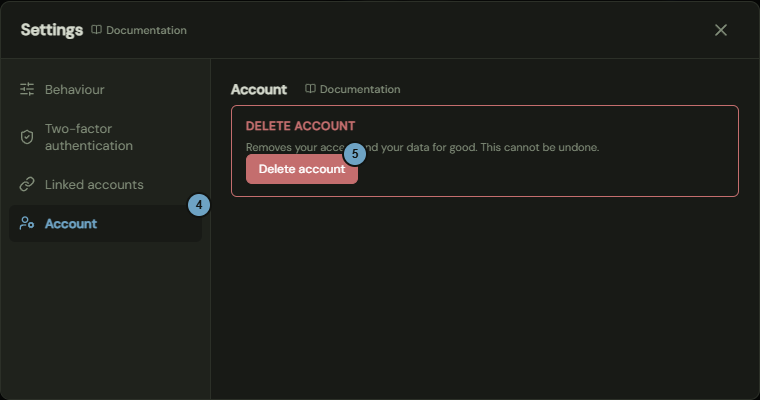
This section describes two windows. You change your personal details in the Profile window. The Account tab in the settings holds only the deletion of your account.
How it works
- Click the user icon at the top, then Profile in the menu.
- Change First name, Last name or Company (optional).
- Click Save.
- To delete, open the settings and click Account.
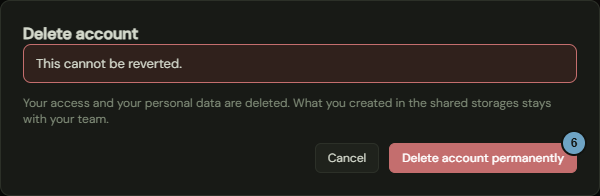
- Click Delete account. The window first checks what deleting means for you.
- Click Delete account permanently. If you are the last administrator of an otherwise empty team, first type your email address or your GitHub name and tick the confirmation.
Effects
| Input or choice | Affects | Result |
|---|---|---|
| Save in the profile | Person | Saves name and company encrypted. First and last name are required, up to 80 characters each; the company up to 120. The name in the user menu changes only after the next page load. |
| Email address | Display | Read only. You do not change an existing address here. If it is still missing, you enter it in the dialog for that, see the note. |
| Details under Account and Sign-in | Display | Show Signed up with, Language, Role, Tenant (your team), Plan, Member since, Last sign-in, Bound devices, Authenticators and Linked accounts. |
| Delete account permanently, person | Person | Removes your access and your personal data for good. What you created in shared storages stays with your team. You are signed out. |
| Delete account permanently, last administrator of an otherwise empty team | Team | Removes the whole team account with all storages, files and keys. This cannot be undone. |
| Delete as last administrator with other people still active | Account | Disabled. Make someone else an administrator or remove the other people first. |
Index a file
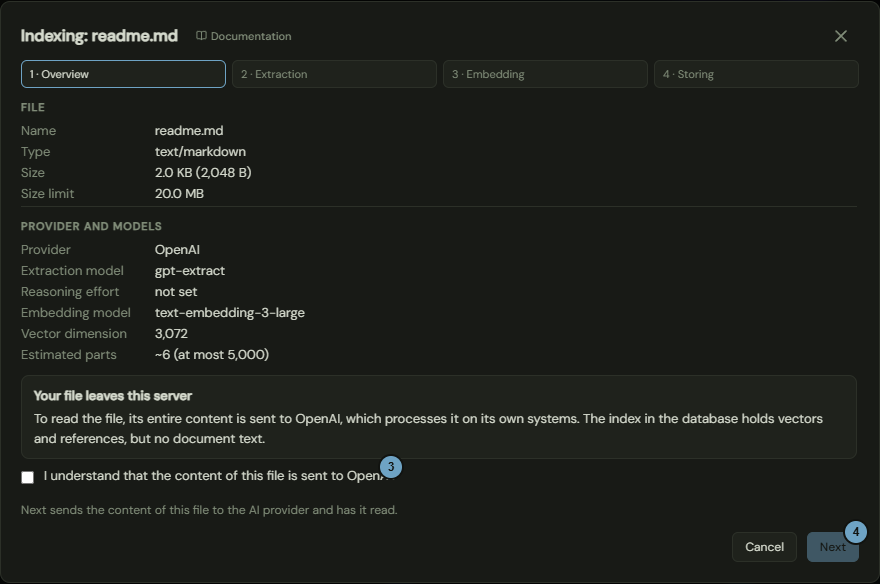
Indexing has an AI provider read a file and builds a search index for it. It runs in four steps: overview, extraction, embedding, storing.
How it works
- In the file tree, open the menu of a file and click Indexing.
- Check file, provider and models in the overview.
- Tick “I understand that the content of this file is sent to {provider name}.”, where the name is your AI provider.
- Click Next to have the file read. You see pages, words, letters, tags and the detected categories.
- Click Next to compute the vectors.
- Click Next to store the index, then Done.
Effects
| Input or choice | Affects | Result |
|---|---|---|
| Tick at the confirmation | Next | Enables the button in the first step. |
| Next in the overview | AI provider | Sends the whole content of the file to the provider. The usage is shown in tokens. |
| Next after the extraction | AI provider | Sends the extracted parts to the provider to turn them into vectors, one request per 256 parts. |
| Next at the embedding | Database | Writes the index: vectors and references, no document text. Only this step stores anything. |
| Close | Window | Discards the intermediate results. The database stays unchanged until the last step ran. |
| File changed meanwhile | Storing | The step says so, and you start again. |
View background jobs
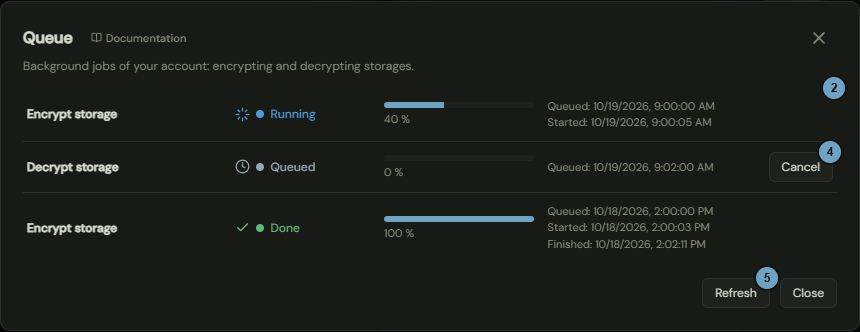
The queue shows the background jobs of your account: encrypting and decrypting storages and, for deletions, removing an account.
How it works
- Click the Queue icon at the top. It is there only while a job waits or runs, and it carries the number of active jobs.
- Read per job the type, status and progress.
- Read the times: queued, started and finished.
- Click Cancel on a job that is still waiting.
- Click Refresh or wait: the list reloads itself.
- For a failed job a red line names the reason.
Effects
| Input or choice | Affects | Result |
|---|---|---|
| Cancel | Job | Cancels a job that still waits. A running or finished job cannot be cancelled. |
| A job starts or ends | Icon at the top | The number changes. Without an active job the icon disappears. |
View the subscription
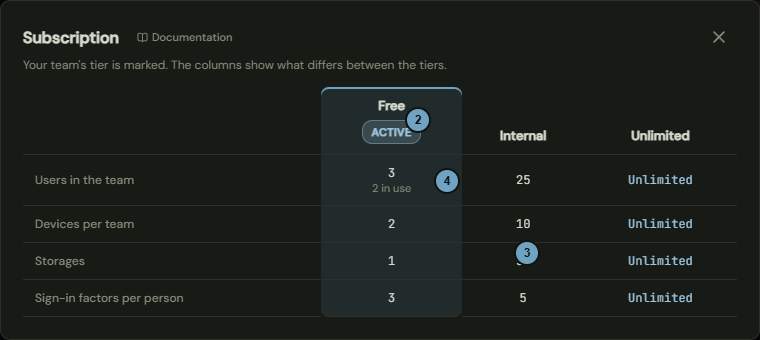
The Subscription window shows the plans and marks the plan of your team. It is for viewing only. You do not change a plan here.
How it works
- Click the user icon at the top, then Subscription in the menu.
- Find the column with the mark Active: it is the plan of your team.
- Read per plan the four limits: users in the team, devices per team, storages and sign-in factors per person.
- In the row of the users, read under the value of the active plan how many are in use.
- Close the window with the cross or the Escape key.
Effects
| Input or choice | Affects | Result |
|---|---|---|
| Open the window | nothing | The window changes nothing. |
| Value Unlimited | Limit | No limit applies to this plan. |