Writing documents
Your documents are Markdown files in your storages. This page shows how to create a file, write it in the editor and keep texts you need again and again as blocks.
New Markdown file
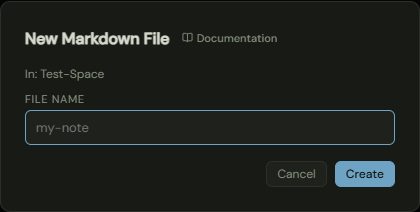
Here you create a new file. The same input also creates a new folder.
How it works
- In the sidebar, click the plus on a storage or a folder. The window says at the top where the file will be created.
- Enter the File name, for example my-note.
- Click Create or press Enter.
Effects
| Entry or choice | Affects | Result |
|---|---|---|
| File name | Storage | The file is created in the storage or folder named at the top and opens in the editor. |
| Create | Sidebar | The new file shows in the file list at once. |
The editor
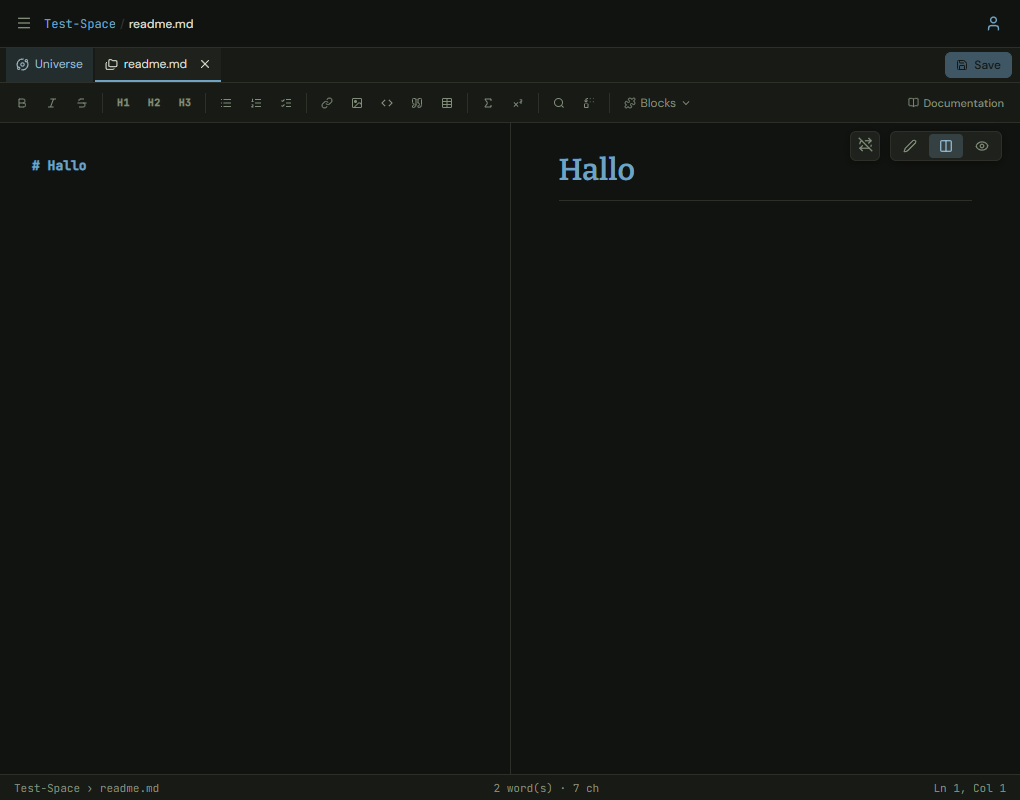
In the editor you write a Markdown file and see next to it what it looks like.
How it works
- Open a file in the sidebar. It appears as a tab next to the universe.
- Write in the left pane. The toolbar sets bold, italic, headings, lists, link, image, code, quote, table and formulas for you. Find and Replace work in the open file.
- Switch the view at the top right to activate the different modes.
- Click Save when you are done.
Effects
| Entry or choice | Affects | Result |
|---|---|---|
| Save | Storage | Writes the file to the storage. If it is in a Git repository, the symbol of the repository in the sidebar shows the change. |
| Auto-save (settings, Behaviour) | Storage | Saves as soon as you stop typing for a while. The Save button is then rarely needed. |
| View | Editor | Edit shows the text only, Split text and preview side by side, View the preview only. |
| Scroll sync | Preview | In the split view the preview follows when you scroll the text. |
| Blocks | Text | Inserts one of your own blocks at the cursor, see Custom blocks. |
Custom blocks
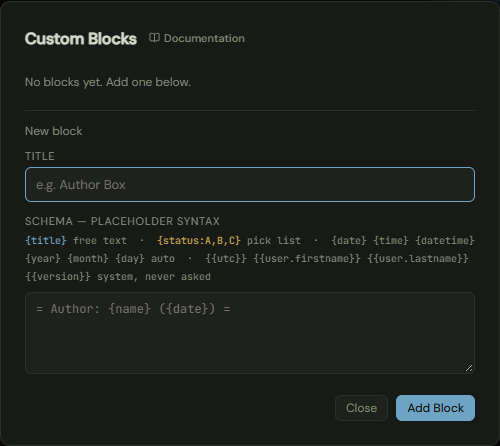
A block is a text you need again and again, with placeholders that are filled in when you insert it. The blocks belong to your team: everyone in the team finds them in the Blocks menu.
How it works
- Open Blocks in the toolbar and click Manage blocks.
- Give the block a Title, for example Author box.
- Write the Schema, that is the text with its placeholders, for example
= Author: {name} ({date}) =. - Click Add Block. You edit or delete an existing block in the list.
Placeholders in the schema
| Notation | Meaning |
|---|---|
{title} |
free text that MeshFolio asks for when you insert the block |
{status:A,B,C} |
a choice from the list, which MeshFolio asks for when you insert the block |
{date} {time} {datetime} {year} {month} {day} |
date and time, filled in automatically |
{{utc}} {{user.firstname}} {{user.lastname}} {{version}} |
details of the system and of your account, never asked for |
Effects
| Entry or choice | Affects | Result |
|---|---|---|
| Add Block | Team | The block is available to everyone in the team in the Blocks menu. |
| Delete | Team | The block disappears for everyone in the team. Texts you have already inserted stay. |
| Insert | Editor | The block is written into the open file at the cursor. |