Universe
- Accounts set up
The Universe is a room of screens. Each screen lists one source, for example repositories, documents, vault groups or a list of people. You drag a card onto a card of another kind and link the two. The room then shows what belongs together. This page describes the room, the Assigned side panel and the settings of a screen.
View the Universe and link cards
The Universe is the first tab in the tab row. It opens by itself when no file is open.
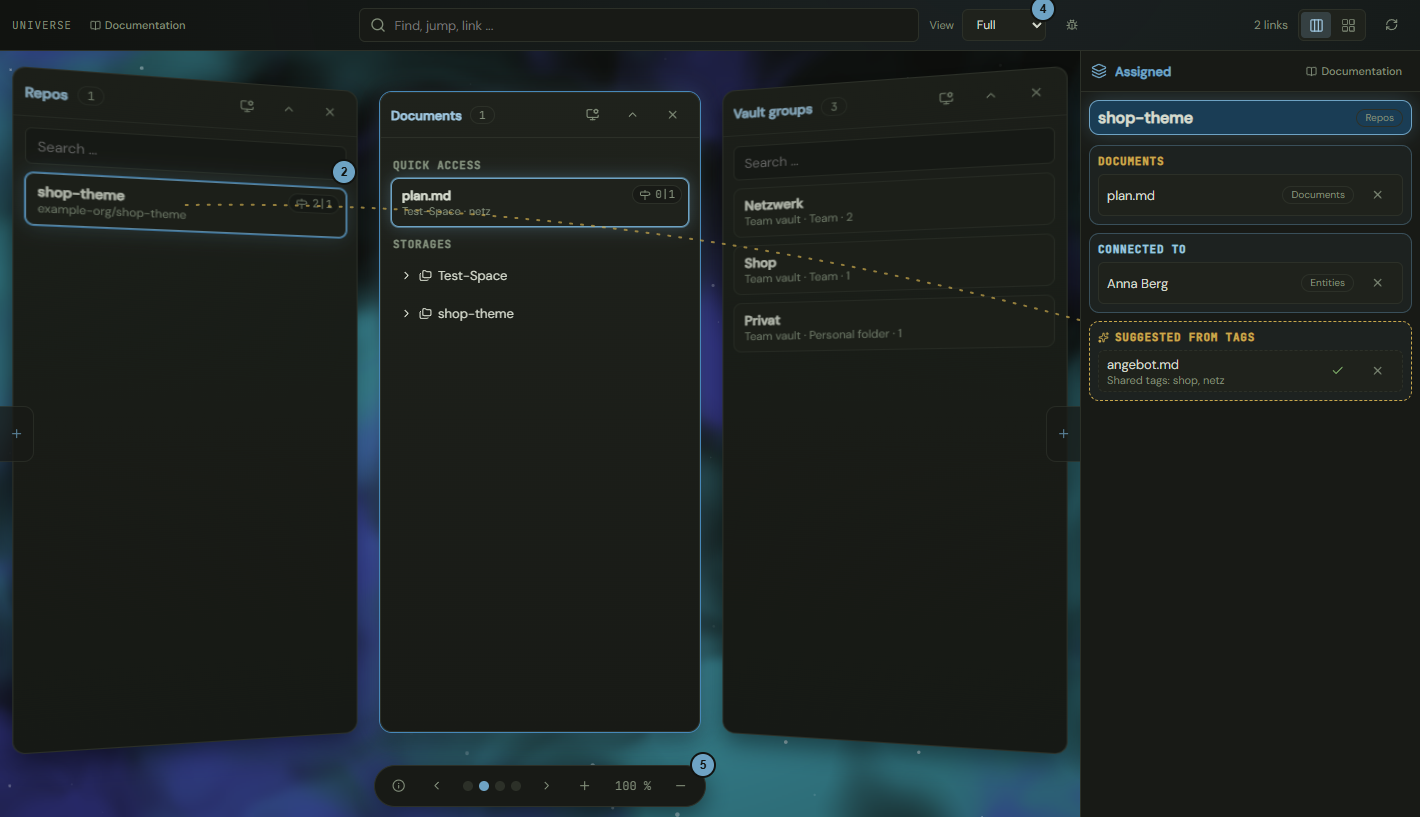
How it works
- Click Universe at the far left of the tab row.
- Click a card, for example a repository. The card is then in focus, and the side panel shows what is linked to it, see View what is assigned.
- Drag a document card onto this card. The link appears at once. Click Undo in the message to take it back.
- Choose Tidy up under View if cards that are already linked should no longer stand on their own screen (unless that screen is a receiver).
- Switch between the screens with the bar at the bottom or with the arrow keys.
Effects
| Input or choice | Affects | Result |
|---|---|---|
| Drag a document onto a repository, vault group or person, or one of those onto another kind of them | Links of the team | Creates a link. The side panel and the links counter at the top change. If the link exists already, the room says “Already linked.”. |
| View, Full | View of this person | Every card stands on its own screen. The choice applies on all devices of this person. |
| View, Tidy up | View of this person | Linked cards leave the screens that are not set as receiver and lie as small stacks on the card they are linked to. A click on a stack opens a list in which you jump to the card or remove the link. |
| Field at the top (“Find, jump, link ...”) | Cards | Marks matching cards and lists up to seven hits. The arrow keys and Enter jump to the hit and open its screen, even a collapsed one. Ctrl+K puts the cursor in the field, Escape clears it. |
| Button with the numbers of incoming and outgoing connections on a card | Lines | Shows or hides the lines of this card. Incoming lines are dotted, outgoing ones dashed, undirected ones solid. |
| Vertical screens / Horizontal screens | Arrangement | Arranges the screens in an arc or in a flat row. The choice applies only in this browser. |
| Reload | Room | Reads links and screens again, and for members who may manage storages also vaults and suggestions. |
| Plus at the edge of the room | Screens | Opens the dialog for a new screen, see Set up a screen. The plus appears only with the right to manage storages and with fewer than twelve screens. |
View what is assigned
The Assigned side panel stands at the right edge of the Universe. It lists what is linked to the card in focus and what it is connected to, and it is the place to remove links or accept suggestions.
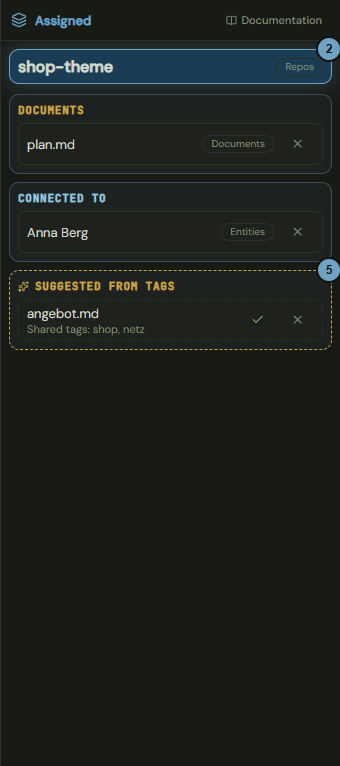
How it works
- Click a card in the Universe. In a narrow window the panel opens by itself. Otherwise open it with Open assigned.
- Read the name of the card in focus at the top.
- Read under Documents and Connected to what is linked to it.
- Click the cross in a row to remove the link. Click Undo in the message to take it back.
- In the band Suggested from tags, click the tick to accept a suggestion or the cross to reject it.
Effects
| Input or choice | Affects | Result |
|---|---|---|
| Cross in a row (Remove link) | Links of the team | Removes the link. The line disappears, and in the Tidy up view the card stands on its own screen again. |
| Tick on a suggestion (Link it) | Links of the team | Creates the link. The suggestion rests on shared tags, which the row names under Shared tags. |
| Cross on a suggestion (Not this one) | Suggestions | Hides the suggestion for good. It does not come back. |
| Close assigned | Panel | Hides the panel until the Universe is loaded again. From a window width of 1440 pixels it always stays open. |
| Right-click on a row | Menu | Opens Details, for a document the menu of the sidebar. |
Set up a screen
The settings of a screen apply to the whole team. They decide what the screen shows, how it looks and how its cards are built. The dialog has three tabs: Screen, Colour and Cards.
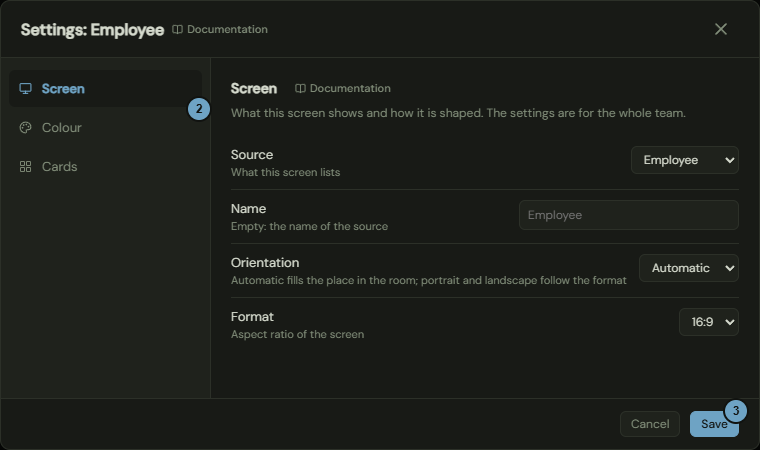
How it works
- In the head of a screen, click the Settings of this screen icon. Alternatively a right-click on the screen opens the menu with Settings of this screen.
- Switch between the settings with the tabs at the left, see Screen tab, Colour tab and Cards tab.
- Click Save.
Effects
| Input or choice | Affects | Result |
|---|---|---|
| Plus at the edge of the room | Dialog | Opens the dialog New screen. A new screen starts with the presets of its source. |
| Save | Screen | Saves the settings for the whole team. The window closes. If something goes wrong, the message appears in the dialog and the dialog stays open. |
| Cancel | Dialog | Discards your changes. The cross and the Escape key do the same. It does not undo a background image that was uploaded or removed, see Colour tab. |
| Cross in the head of the screen | Screen | Asks “Remove the screen?”. With Remove the screen disappears with its settings and its background image. Documents, links and people stay. |
Screen tab
The Screen tab decides what the screen lists and how it is shaped. It is the first tab and stands in the picture of the dialog above, see Set up a screen.
How it works
- Under Source, choose what the screen lists: repositories, documents, vault groups or an entity type.
- Under Name, enter a name with up to 40 characters. If the field stays empty, the screen carries the name of the source.
- Under Orientation, choose Automatic, Portrait or Landscape.
- Under Format, choose the aspect ratio.
- Click Save.
Effects
| Input or choice | Affects | Result |
|---|---|---|
| Source | Screen | Decides the cards of the screen. Another source also changes the fields of the cards and whether the screen is a receiver or a source in the view Tidy up. |
| Name | Head of the screen | The name stands in the head of the screen. Empty, the name of the source applies. |
| Orientation | Place in the room | Automatic fills the place in the room. Portrait and landscape follow the chosen format. |
| Format | Screen | Sets the aspect ratio: 16:9, 4:3 or 1:1. |
Colour tab
The Colour tab sets the colour and the background of the screen.
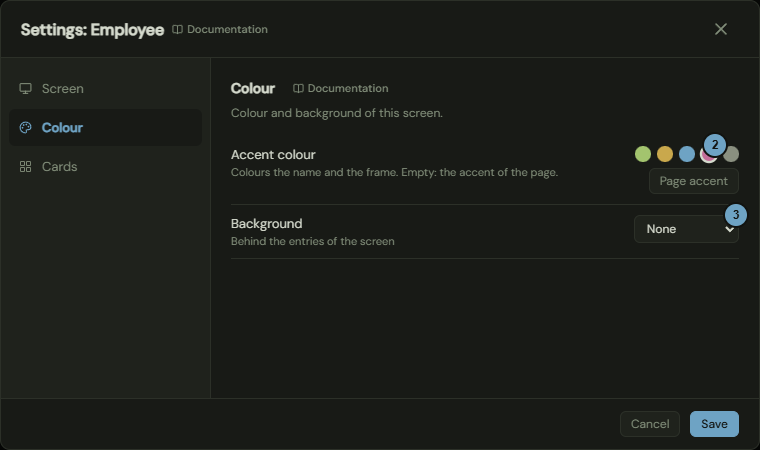
How it works
- Click the Colour tab in the dialog.
- Under Accent colour, click a colour swatch. With Page accent the screen takes the accent of the page again.
- Under Background, choose None, Accent light or Image.
- For Image, choose Upload an image and an image of at most 2 MB.
- Click Save.
Effects
| Input or choice | Affects | Result |
|---|---|---|
| Accent colour | Screen | Colours the name and the frame of the screen. Page accent takes the accent of the page. |
| Background, Accent light | Screen | Puts a light in the accent colour behind the entries. |
| Background, Image | Screen | Puts the uploaded image behind the entries. When you create a new screen, Image cannot be chosen yet, because the screen can take an image only after it is saved. |
| Upload an image / Replace the image | Image of the screen | Uploads the image at once. PNG, JPEG and WebP up to 2 MB are allowed. The image is stored encrypted in the storage of the team. |
| Remove the image | Image of the screen | Removes the image at once. |
Cards tab
The Cards tab decides how the entries of the screen look and how you select them. The fields Title, Subtitle, Badge 1 to 3 and All fields in the details appear only for a screen whose source is an entity type (for example people).
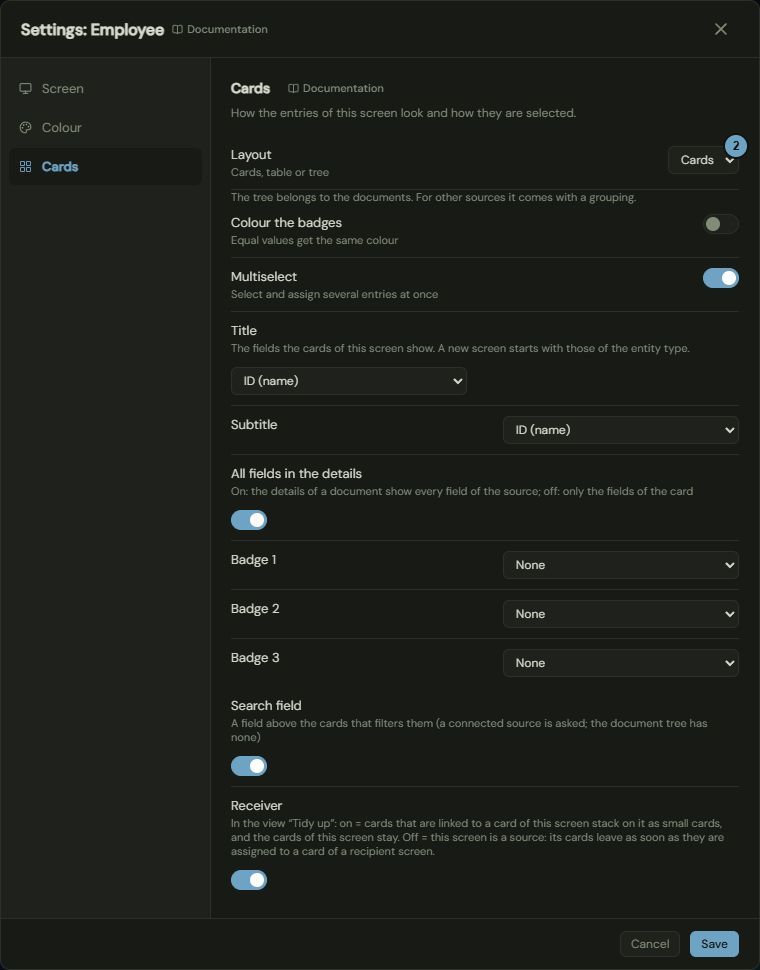
How it works
- Click the Cards tab in the dialog.
- Under Layout, choose Cards, Table or Tree.
- Switch Colour the badges and Multiselect on or off as needed.
- Under Title, Subtitle and Badge 1 to Badge 3, choose the fields the cards show.
- Click Save.
Effects
| Input or choice | Affects | Result |
|---|---|---|
| Layout | Screen | Shows the entries as cards or as a table. Documents have only the tree; for other sources the tree cannot be chosen yet. |
| Colour the badges | Badges | Equal values get the same colour. |
| Multiselect | Selection | Several entries can be selected and linked at once. |
| Title, Subtitle, Badge 1 to 3 | Cards | Decide the fields of the cards of this screen. A new screen starts with the fields of its entity type. |
| All fields in the details | Details | On: the details of a document show every field of the source. Off: only the fields of the card. |
| Search field | Screen | Puts a field above the cards that filters them. A connected source is asked. The document tree has no search field. |
| Receiver | View Tidy up | On: cards that are connected to a card of this screen stack on it as small cards. Off: this screen is a source, its cards disappear as soon as they are linked to a card of a receiver screen. |