Vaults and connectors
Connectors link MeshFolio with other services: GitHub for repositories, Bitwarden for password vaults and ERPNext for customers, employees and other documents. This page shows how you see them, connect them and use them. A vault here is always a password vault (Bitwarden or Vaultwarden). Places where your files live are called storages.
View connectors
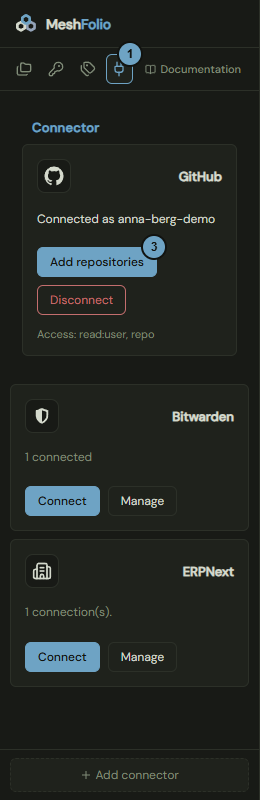
The Connectors view shows what your team is connected to and what can still be connected.
How it works
- At the top of the sidebar, click the Connectors icon.
- For a connector that is not connected yet, click Connect GitHub or Connect.
- At GitHub, click Add repositories to choose repositories as storages.
Effects
| Entry or choice | Affects | Result |
|---|---|---|
| Connect GitHub | Connection | Opens the window Connect GitHub. |
| Connect at Bitwarden | Connection | Opens the window to connect Bitwarden, see Link a vault. |
| Connect at ERPNext | Connection | Opens the window to connect ERPNext. MeshFolio only reads. |
| Add repositories | Storage | Opens the choice, see Add repositories. Chosen repositories appear as storages. |
| Manage at Bitwarden or ERPNext | Connections | Opens the list of connections, in which you remove a connection. |
| Disconnect at GitHub | GitHub | After a question, MeshFolio revokes its access at GitHub. Storages that were cloned stay, but they can no longer reach GitHub. |
| Add connector | Window | Opens the choice of connectors, see Add a connector. |
Add a connector
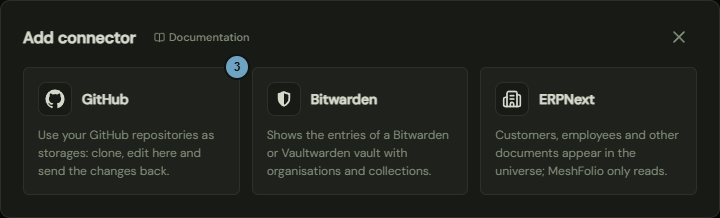
Here you choose which connector you connect.
How it works
- At the top of the sidebar, click the Connectors icon.
- At the bottom of the sidebar, click Add connector.
- Click the card of the connector: GitHub, Bitwarden or ERPNext.
Effects
| Entry or choice | Affects | Result |
|---|---|---|
| GitHub | Connection | Closes the window. If GitHub is not connected yet, Connect GitHub follows, otherwise Add repositories. |
| Bitwarden | Connection | Closes the window and opens the window to connect a vault, see Link a vault. |
| ERPNext | Connection | Closes the window and opens the window to connect ERPNext. Afterwards the Connectors view shows the new connection. |
| Cross at the top, Escape | Window | Closes the window without changing anything. |
Connect GitHub
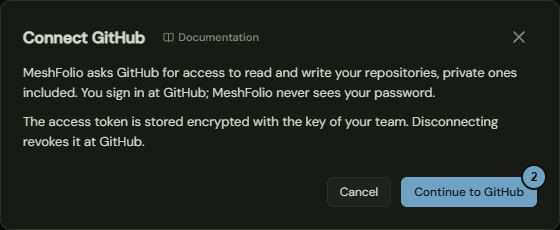
Before you go to GitHub, MeshFolio asks here for your consent: it asks GitHub for access to your repositories.
How it works
- In the Connectors view, click Connect GitHub at GitHub.
- Click Continue to GitHub.
- Sign in at GitHub and allow the access to repositories.
Effects
| Entry or choice | Affects | Result |
|---|---|---|
| Continue to GitHub | GitHub | Goes to GitHub. MeshFolio asks for access to read and write your repositories, private ones included. You sign in at GitHub, MeshFolio never sees your password. |
| Consent at GitHub | Connection | The access token is stored encrypted with the key of your team. The card shows "Connected as …" and the choice Add repositories opens. |
| Cancel | Window | Closes the window without sending anything. |
Add repositories
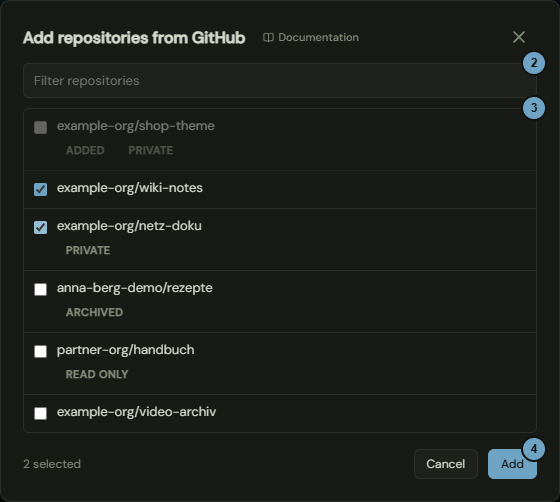
Here you choose repositories from GitHub that MeshFolio adds as storages and clones in the background.
How it works
- In the Connectors view, click Add repositories on the card of GitHub.
- Under Filter repositories, type part of the name to narrow the list.
- Tick every repository you want to add.
- Click Add.
Effects
| Entry or choice | Affects | Result |
|---|---|---|
| Tick | Selection | The counter says how many are selected. Add can be clicked only from one repository on. |
| Add | Storage | Each chosen repository (at most 20 at once) becomes a new storage that is cloned in the background, and counts toward the repository limit of your plan. It appears collapsed in the Folders view, see Browse storages and folders. |
| Added, Larger than … MB | Row | These rows cannot be selected. The limit in MB is in the badge. |
| Private, Archived, Read only | Row | Badges. The rows can be selected. With Read only, changes cannot be sent back to GitHub. |
| Cancel | Window | Closes the window without adding anything. |
View vaults
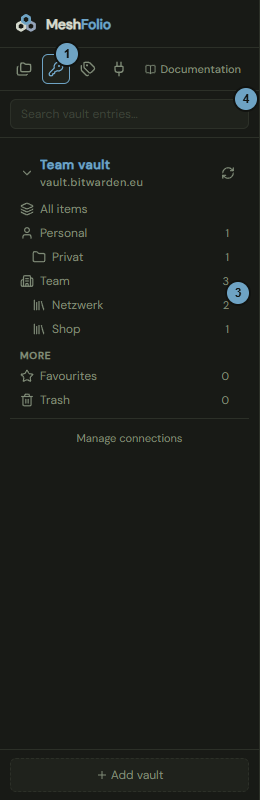
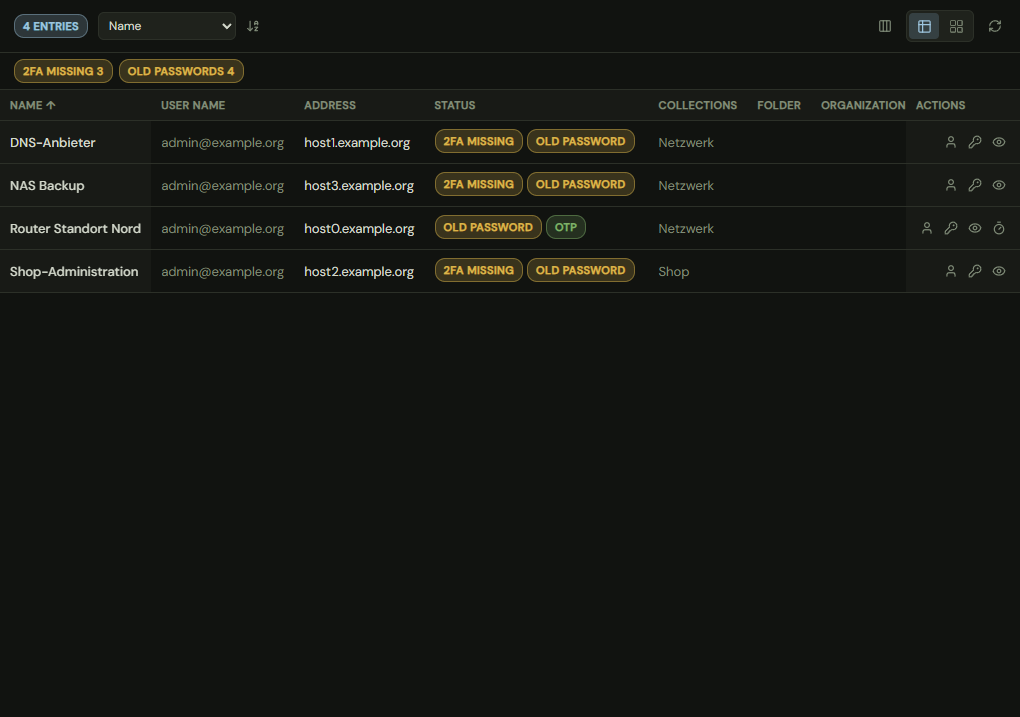
The Vaults view shows your connected password vaults with folders, organizations and collections and opens the entries as a table. It needs an account.
How it works
- At the top of the sidebar, click the Vaults icon.
- If a vault is locked, click Unlock and enter the master password.
- Click an item of the list, for example a collection. The entries open as a table.
- Enter a term in the search field to narrow the entries.
- Click a row of the table to open the entry, see View a vault entry.
Effects
| Entry or choice | Affects | Result |
|---|---|---|
| Vaults icon | Sidebar | Shows the vaults. The choice is remembered in this browser. |
| Unlock | Vault | The master password is encrypted in the browser and used once to open the vault. It is not stored. The vault stays open until you sign out of MeshFolio. |
| Refresh next to the vault | Vault | Reloads folders, organizations and collections from the vault server. |
| Search field | Table | Filters the open table. If no table is open, it searches all open vaults in a tab "Search: …". |
| Manage connections | Connections | For administrators only. Opens the list of connections. Remove deletes the connection, nothing is deleted in the vault itself. |
| Icons in a row | Clipboard | Copy the user name, the password or the one-time code. A copied password or one-time code is cleared from the clipboard after 30 seconds. |
| Show password for 10 seconds | Table | Shows the password in the row for 10 seconds. Where the collection hides passwords, the password, the eye and the one-time code are missing. |
| Badge of the checks above the table | Table | Filters to the entries with this check, for example 2FA missing. |
Link a vault
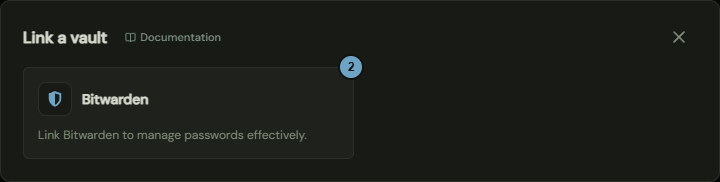
Here you choose the kind of vault you link. Bitwarden is offered, also as a self-hosted Vaultwarden server. Only administrators can link vaults.
How it works
- In the Vaults view, click Add vault at the bottom.
- Click the card Bitwarden.
- In the window Connect Bitwarden, enter the details, click Test connection and then Save.
Effects
| Entry or choice | Affects | Result |
|---|---|---|
| Bitwarden | Window | Closes the choice and opens the window Connect Bitwarden. |
| Name of the connection | Vault | This is the name of the connection in the list. The name must be unique in the team. |
| Server | Vault | Bitwarden (bitwarden.com), Bitwarden EU (bitwarden.eu) or Self-hosted (Vaultwarden or Bitwarden server). For self-hosted servers, enter the Address of the server. |
| client_id, client_secret, Master password | Vault | The API key of the account and the master password open the vault. You find the API key in the web vault under Account settings, Security, Keys. |
| Store the master password (encrypted) so that the vault opens by itself | Vault | With the tick, MeshFolio can open the vault without you. The master password is sealed with the key of your team. |
| Test connection | Connection | Checks whether the vault can be opened and names the account, organizations, collections and entries. Nothing is stored. Five tests are allowed in 10 minutes. |
| Save | Connection | Saves the connection and opens the vault for this session. It appears in the Vaults view at once. Can be clicked only after a successful test. Any change, or more than 10 minutes of waiting, discards the test. |
View a vault entry
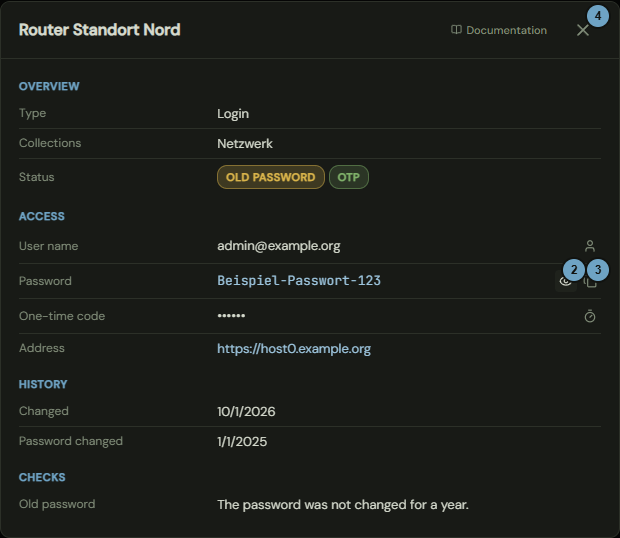
The window shows an entry of your vault in sections. Secrets such as the password are visible only after a click.
How it works
- In the table of vault entries, click a row.
- Next to Password, click Show password for 10 seconds.
- Click Copy password to put the password on the clipboard.
- Click the cross to close the window.
Effects
| Entry or choice | Affects | Result |
|---|---|---|
| Show password for 10 seconds | Display | Fetches the password from the vault and shows it for 10 seconds, then as dots again. |
| Copy password | Clipboard | Copies the password. The clipboard is cleared after 30 seconds. |
| Icon at One-time code | Display and clipboard | Shows the current one-time code and copies it. |
| Icon at User name | Clipboard | Copies the user name. |
| Address | Browser | An address with http or https opens as a link in a new tab. |