Storage and repositories
Your documents live in storages. This page shows how you see your storages in the sidebar, how you add a new one and how you decide how a storage behaves.
Browse storages and folders
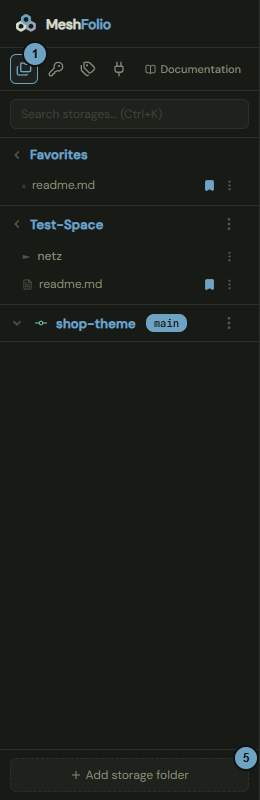
The Folders view is the main view of the sidebar: it shows your storages with their folders and files, and your favorites.
How it works
- At the top of the sidebar, click the Folders icon.
- Click the name of a storage to open its folders.
- Click a folder or a file. A file opens in the editor.
- Point at a storage or folder and click the plus to create something new there, see New Markdown file.
- Click Add storage folder to add another storage, see Add a storage.
Effects
| Entry or choice | Affects | Result |
|---|---|---|
| Folders icon | Sidebar | Shows the storages. The choice is remembered in this browser. |
| Name of a storage | File tree | Opens or closes the folders. They are loaded when you first open them. |
| Add bookmark in the menu of a file | Favorites | The file appears at the top under Favorites. Remove bookmark takes it out again. There are at most 200 bookmarks. |
| Three dots on a storage, then Options | Storage | Opens the options of the storage, see Set storage options. |
| Add storage folder | Storage | With an account, the choice of the kind opens, see Add a storage; without one, the window for a folder of the computer, see Add a computer folder. |
Add a storage
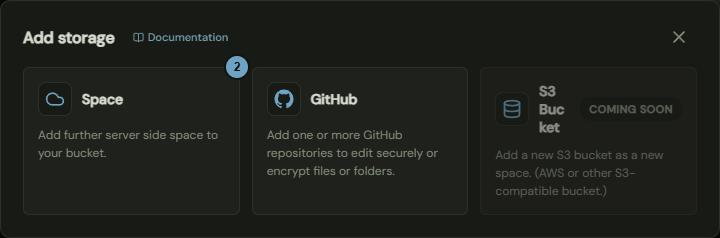
With an account, you choose here the kind of storage you add. Without an account, Add storage folder opens the window Add a computer folder instead.
How it works
- At the bottom of the sidebar, click Add storage folder.
- Click the card Space.
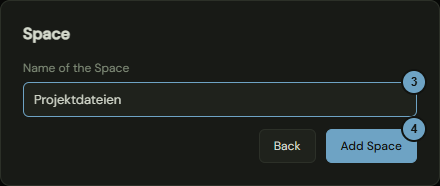
- Enter a name of up to 80 characters under Name of the Space.
- Click Add Space.
Effects
| Entry or choice | Affects | Result |
|---|---|---|
| Space | Storage | Creates a new storage on the object store of the server. It is opened and shown in the list, see Browse storages and folders. |
| GitHub | Connection | Closes the window and opens the connection to GitHub, through which you add repositories, see Connect GitHub. If the connection is not available, the card carries Coming soon. |
| S3 Bucket | Storage | Not available yet. The card carries the badge Coming soon. |
| Back | Window | Leads from the entry of the name back to the cards. |
Add a computer folder
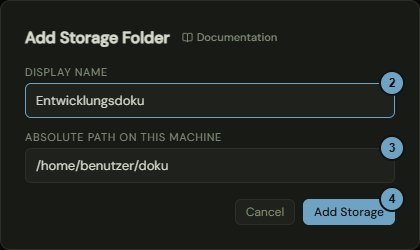
If MeshFolio runs without accounts, you add here a folder of the computer on which MeshFolio runs as a storage.
How it works
- At the bottom of the sidebar, click Add storage folder.
- Under Display Name, enter the name under which the storage appears in the list.
- Under Absolute Path on this machine, enter the folder.
- Click Add Storage.
Effects
| Entry or choice | Affects | Result |
|---|---|---|
| Display Name | Sidebar | This is the name of the storage in the list. |
| Absolute Path on this machine | Storage | This folder becomes the storage. The files in it appear as they are. |
| Add Storage | Sidebar | The storage appears collapsed in the list and is kept. |
| Cancel | Window | Closes the window without saving anything. |
Set storage options
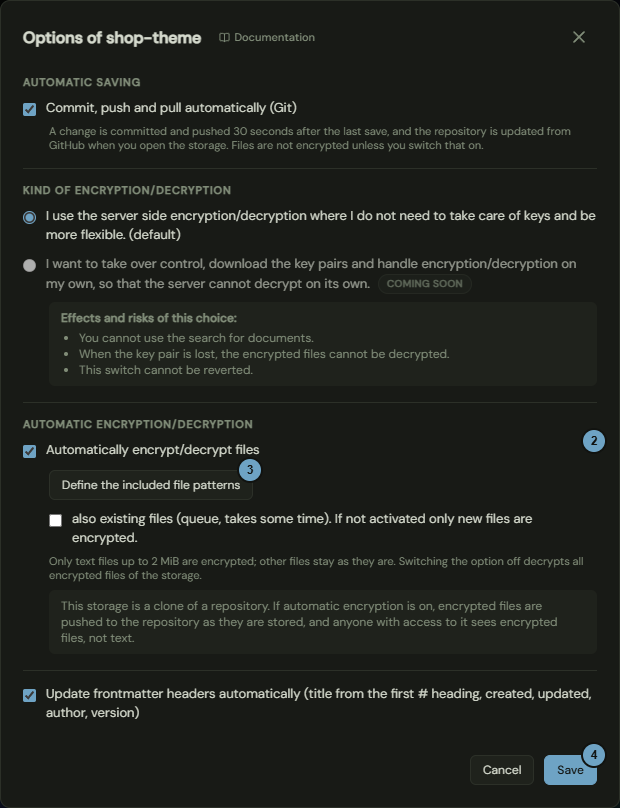
Here you decide how a storage behaves: whether it saves automatically, whether changes go to Git automatically, whether files are encrypted and whether the headers of the files are kept up to date.
How it works
- In the sidebar, point at the storage, click the three dots and choose Options. The window is called "Options of …".
- Switch the options you want on or off, for example Automatically encrypt/decrypt files.
- If encryption is on, click Define the included file patterns to choose which files are encrypted, see Define file patterns.
- Click Save.
Effects
| Entry or choice | Affects | Result |
|---|---|---|
| Save changes automatically (Space) | Editor | The editor saves changed files of this storage by itself after your autosave delay. Nothing is committed or pushed. |
| Commit, push and pull automatically (Git) (storage cloned from GitHub) | Repository | 30 seconds after the last save, the change is committed and pushed. When you open the storage, the repository is updated from GitHub. |
| Automatically encrypt/decrypt files switched on | Files | New text files up to 2 MiB that match the file patterns are stored encrypted. |
| Automatically encrypt/decrypt files switched off | Files | All encrypted files of the storage are decrypted. The job appears in the queue (user menu, Queue). |
| also existing files | Queue | Existing matching files are encrypted too. That takes some time. |
| Update frontmatter headers automatically | Markdown files | On every save, MeshFolio sets title (from the first # heading), created, updated, author and version in the header of the file. |
| Save | Storage | The options now apply to all members. The window closes and a message confirms. |
Define file patterns
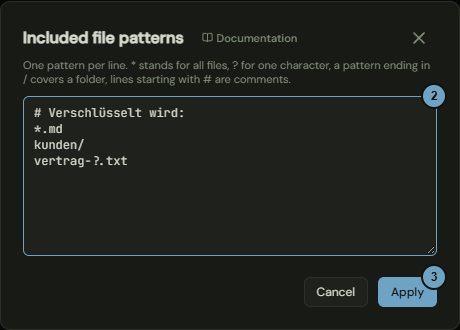
Here you decide which files of a storage are stored encrypted.
How it works
- In the options of the storage, click Define the included file patterns. The button can be clicked only while encryption is on.
- Write one pattern per line in the field.
- Click Apply.
- In the options of the storage, click Save.
Effects
| Entry or choice | Affects | Result |
|---|---|---|
A star * |
Files | Stands for any number of characters, also across folder borders. A question mark ? stands for one character within a folder. |
A slash / at the end |
Files | The pattern covers a folder and everything in it. |
| A pattern without a slash | Files | Is also matched against the file name. So *.md finds Markdown files in every folder. |
A line starting with # |
Patterns | Is a comment. |
| Apply | Options | The text goes into the options of the storage. It is saved only there, with Save. |
| Cancel | Window | Discards your entry. The cross and the Escape key do the same. |